
openLink
Open a URL or deep link in the app or system browser.
Opens a URL or deep link on the target device.
Arguments
The openLink command accepts either a single string value for the link or the following key-value pairs:
| Key | Description |
|---|---|
link | Required. The URL or custom protocol link to open, such as https://example.com or awesomeapp://settings. |
autoVerify | Android only. If true, attempts to auto-verify your app to handle the web link, bypassing the app disambiguation dialog. On Android 12 and higher, this flag also auto-accepts Google Chrome agreements if they appear. |
browser | Android only. If true, forces the web link to open in Google Chrome. |
Usage examples
To open a simple web link, use the shorthand approach, providing the link:
- openLink: https://example.comYou can also open a deeplink with a custom protocol:
- openLink:
    link: awesomeapp://settings
Android
If you are using Android, you can force the link to open in the browser by using the browser: true argument.
- openLink:
    link: https://example.com
    browser: true
Platform-specific behavior
When using openLink for testing on Android or iOS, you need to pay attention to the specific behaviors of each operating system.
Android app verification
When you open a web link that your app can handle, Android may show a disambiguation dialog asking the user which app to use.
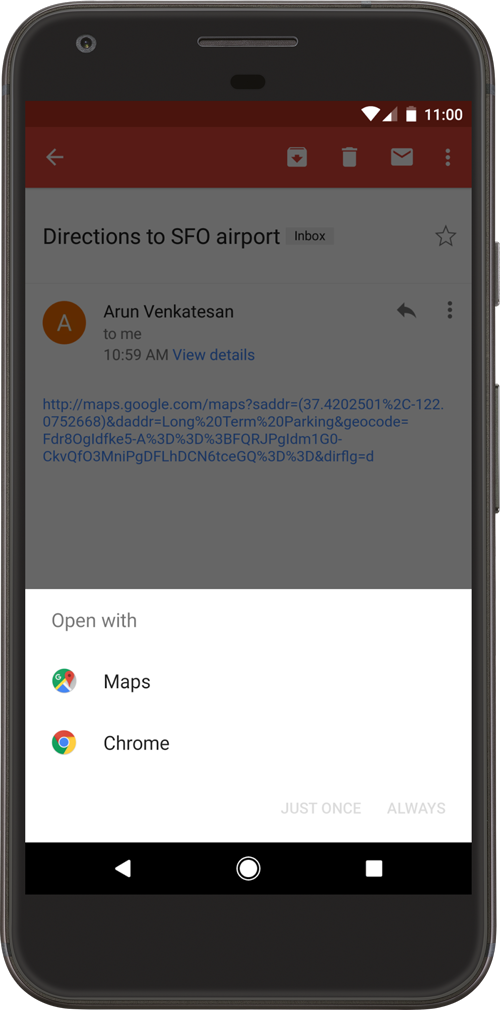
To bypass this dialog, set the autoVerify argument to true :
- openLink:
    link: https://example.com
    autoVerify: true
On Android 12 and higher, web links open in a web browser by default. The autoVerify flag can also handle the initial Google Chrome agreements if they are shown.
iOS security confirmation
On some iOS versions, the operating system shows a security confirmation dialog the first time an app is launched from a deep link.
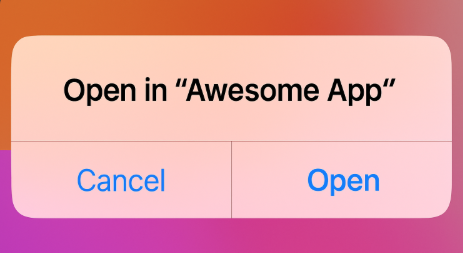
Accepting this prompt is a permanent choice for that Simulator and is not affected by clearing app state.
You may need to account for this dialog in your Flow. The following example uses a conditional runFlow to tap the Open button if the security dialog appears.
- openLink:
    link: awesomeapp://settings
- runFlow:
    when:
      visible: 'Open in "Awesome App"'
    commands:
      - tapOn: Open