
Troubleshooting
Diagnose and fix installation, device connection, and run problems.
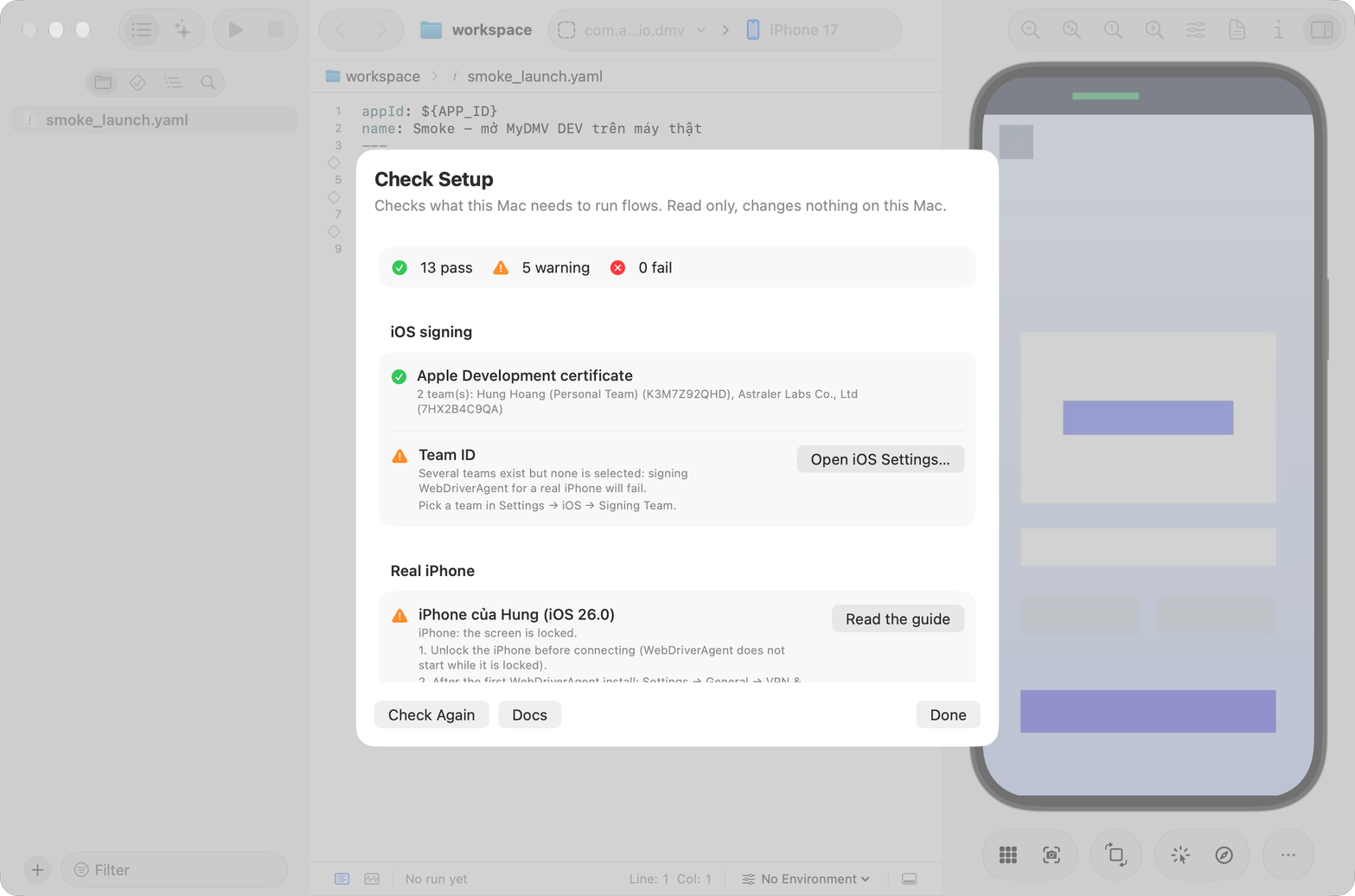
Start with Help → Setup Check…. It finds most problems and links to the right fix. See Settings.
If you still need help, send the team a screenshot of Setup check, ~/Library/Logs/Astra Scout/server.log, and the build.log file mentioned in the error message.
Installing and opening the app
macOS says the app cannot be opened or is damaged
Control-click Astra Scout → Open → Open, or use System Settings → Privacy & Security → Open Anyway. For "is damaged", run:
xattr -dr com.apple.quarantine "/Applications/Astra Scout.app"See Installation.
"You have not agreed to the Xcode license agreements"
sudo xcodebuild -license accept
sudo xcodebuild -runFirstLaunch
Real iPhone
Signing for "WebDriverAgentRunner" requires a development team
There is no Team ID to sign WDA. An app opened from Finder does not read MAESTRO_TEAM_ID from .zshrc.
- Sign in to your Apple ID in Xcode and create an Apple Development certificate. See Devices.
- Open Settings → iOS (section Signing Team) and choose a team, or enter the Team ID by hand. The app shows "In use: <Team ID>".
- Reconnect the iPhone. You do not need to restart the app, and the failed build is not reused.
The error message prints the exact path of build.log. For a DMG install it is under ~/Library/Application Support/Astra Scout/maestro-runner/cache/wda-builds/…/logs/build.log.
No profiles for 'com.facebook.WebDriverAgentRunner.xctrunner' were found or No Account for Team
Xcode could not create a provisioning profile. Check that:
- The Apple ID for that team is signed in under Xcode → Settings → Accounts (sign in again if it expired).
- The iPhone is plugged in and open in Xcode → Devices and Simulators.
- The Team ID in Settings → iOS is the team that has the certificate.
- If you use a Personal Team and see "Failed to register bundle identifier", use the company team or wait a few days. A Personal Team can register only a few bundle IDs per week.
The iPhone says the developer is not trusted
On the iPhone: Settings → General → VPN & Device Management → Apple Development: … → Trust, then connect again.
Developer Mode disabled
Turn on Settings → Privacy & Security → Developer Mode on the iPhone and restart it.
The iPhone connection hangs or WDA does not start
- The iPhone may be locked. Unlock it and try again.
- Unplug and replug the cable, unlock it, and check in Xcode → Devices and Simulators that it is not still "Preparing".
- Over Wi-Fi, allow System Settings → Privacy & Security → Local Network → Astra Scout, or plug in the cable.
"iPhone screen is locked — unlock the iPhone and try again"
The iPhone locked itself and has a passcode, so Astra Scout cannot unlock it. Unlock it and run again, and set Auto-Lock to Never while testing. Runs blocked this way have the code DEVICE_LOCKED and are never treated as app bugs.
The iPhone mirror shows an error
The mirror uses CoreDevice's media stream (Xcode 27 and iOS 27); unlock the iPhone and check that it is trusted. A locked or unreachable iPhone starts mirroring by itself once it answers; an iPhone without the media stream cannot be mirrored, but flows still run. See Devices.
All devices
"Blocked: the driver is not responding"
Astra Scout checks the driver before each run and every 15 seconds. If it does not answer, the device shows Reconnecting driver… and the driver restarts once. If that fails, click Reconnect. This usually means WDA was shut down (Xcode or the simulator restarted, or another tool uses the same simulator). Close the other tool or use a different simulator.
The first iOS connection takes a long time
The first time, maestro-runner builds WebDriverAgent. This takes about 3 to 10 minutes. Later connections reuse the build.
Android
Device unauthorized
Accept Allow USB debugging on the device. If you do not see the dialog, turn USB debugging off and on, choose Revoke USB debugging authorizations, then plug the cable in again. adb devices must show device.
Android SDK not found
Set the path in Settings → Emulators → Android SDK, or set ANDROID_HOME.
AI
AI says "Not signed in"
Run the CLI in Terminal and sign in, then click Settings → AI → Rescan. You do not need to reopen the app.
"No AI available…" in an AI step
No AI CLI is usable. Install and sign in to one, then rescan. See AI assistant.
The plugin cannot connect
Run /scout:setup. It checks that Astra Scout is running, the URL, that MCP is enabled and the token. See The scout plugin.