AI assistant
Use an AI CLI already on your Mac to write, explain, and fix flows inside Astra Scout.
Astra Scout does not bundle a model. It uses an AI CLI already installed and signed in on your Mac, in read-only mode (it does not edit your files). Astra Scout itself inserts flows and runs them.
Set up an AI CLI
You need just one of these:
| CLI | Install | Sign in |
|---|---|---|
| Claude Code | Follow the Claude Code docs, for example npm i -g @anthropic-ai/claude-code | Run claude, type /login |
| OpenAI Codex | npm i -g @openai/codex or Homebrew | codex login |
| Gemini CLI | npm i -g @google/gemini-cli or brew install gemini-cli | Run gemini and sign in |
Alternatively, start the server with the ANTHROPIC_API_KEY environment variable set; Anthropic API then appears as a provider.
Then open Settings → AI and click Rescan. Each CLI shows Ready when it can be used. The app rereads your shell's PATH, so you do not need to reopen it.
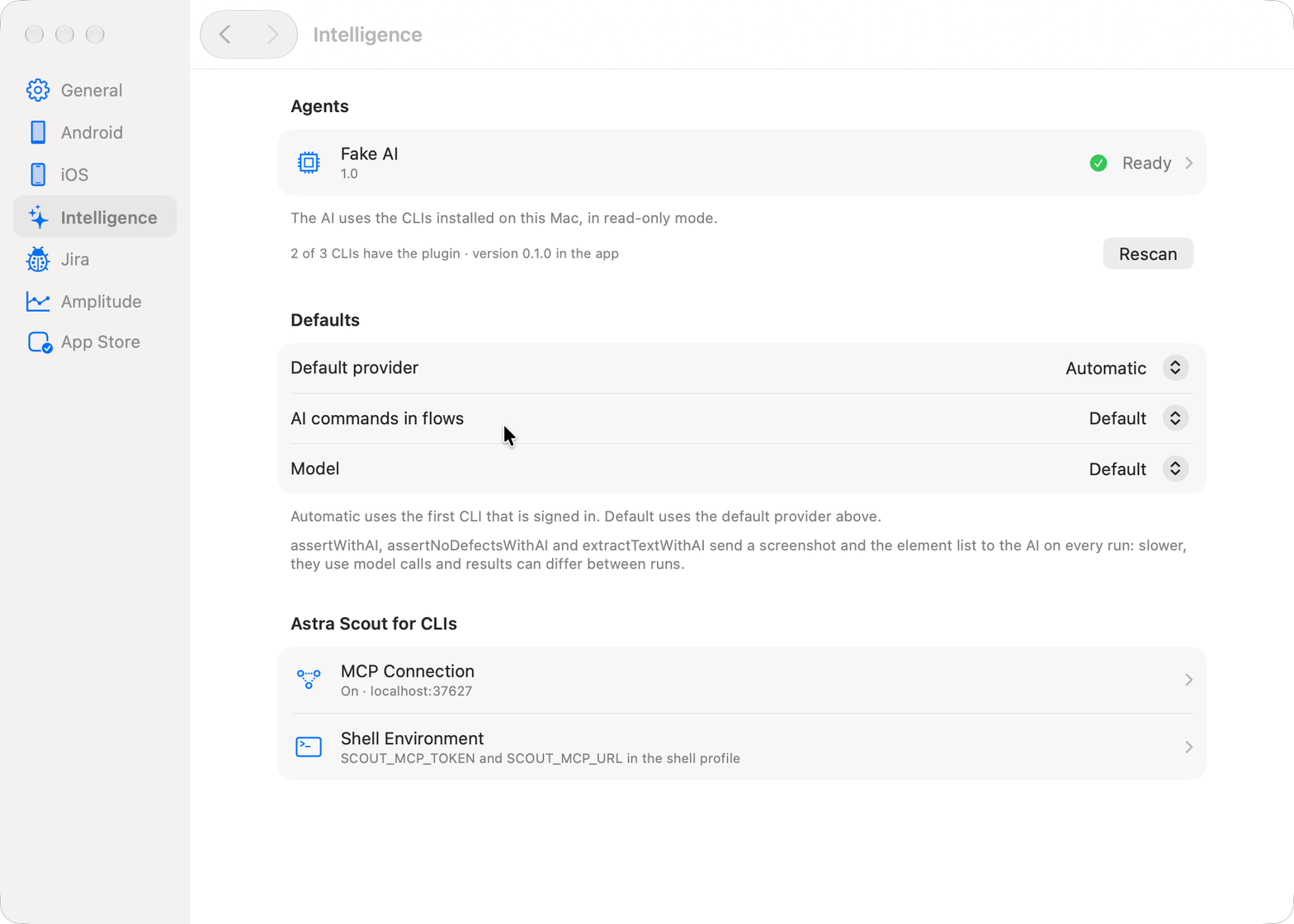
In Settings → AI you can also pick the Default provider (or Automatic, the first usable one), a model, extra arguments and a CLI path for each provider.
Chat panel
Switch the left sidebar to AI Assistant with the control at the top of the sidebar. The sidebar then lists your conversations, and the open conversation takes the editor's place. Choose New Conversation, pick the AI and Model to use, describe what you want, then press Enter to send (Shift+Enter for a new line). Examples:
- "Write a flow that opens the app, signs in with the email test@example.com and checks that the home screen is shown"
- "Explain what the open flow does"
- "Add a screenshot step after every button tap"
Use the Context menu (paperclip) next to the box to tell the AI what to look at: the current file, the Selection, the Device screen (the element list), the last run's result and error, and Flows in workspace as a style reference. Past conversations stay in the sidebar list.
When the AI replies with YAML, the code block offers:
| Button | What it does |
|---|---|
| Insert into File | Adds the YAML to the open flow |
| Apply to File | Compares with the open file and applies on your confirmation |
| Create New File | Saves the YAML as a new file in the workspace |
| Try Run | Runs it on the device without saving a file |
| Copy | Copies the YAML |
Astra Scout validates YAML in chat and rejects commands the connected platform cannot run.
Auto-fix until it passes
Click Auto-Fix… on a failed run, or Fix with AI to hand the failure to the chat. Auto-fix runs the flow, asks the AI for a fix, applies it to a draft and runs again, for a limited number of rounds.
- Each round records the failing step and error, the AI's reason, the YAML diff and screenshots from before and after.
- View Last Video opens the video with a timeline of the rounds.
- It stops early (Incomplete) when the same step fails the same way two rounds in a row, or when the AI proposes a version that already ran. It stops immediately (Blocked) when the device or driver fails.
- When it passes, Review and Apply… lets you review the diff before writing the file. Turn on Apply to the file when it passes only if you want it written automatically.
- Steps that look like a purchase run like any other step, so use test devices only. See Purchase testing.
AI commands in flows
Flows can use Maestro's three AI commands. Astra Scout runs them with your AI, with no Maestro Cloud needed.
| Command | Syntax | Result |
|---|---|---|
assertWithAI | - assertWithAI: "The screen has a Sign in button" | True or false with a reason |
assertNoDefectsWithAI | - assertNoDefectsWithAI | False when it sees clipped or overlapping text, a blank screen or a broken layout |
extractTextWithAI | - extractTextWithAI: "CAPTCHA code" | Saves the text it reads into ${aiOutput} (or the variable you set) |
Things to know:
- Each step captures the screen and element list and sends one AI request. It costs a model call (about 5 to 8 seconds with Claude Code) and the AI may answer differently between runs. Use these commands only when a selector such as
assertVisiblecannot do the check. - Like Maestro, they default to
optional: true: a failed step is red but the flow continues. Addoptional: falseto stop the flow. Each step waits up to 60 seconds (change withtimeout:in milliseconds). - Choose the provider and model in Settings → AI → AI commands in flows.
- The step's result panel records the verdict, the question, the raw answer, the model and the screenshot path.
- For
assertWithAIandassertNoDefectsWithAI, if the AI'sconfidenceis below 0.6, the run's verdict is Unsure, not Passed.assertNoDefectsWithAIwithout a screenshot is also Unsure, because Astra Scout never concludes there are no UI defects from the element tree alone. - The AI that judges is separate from the AI that acts. The judge only receives the assertion or query, the screen and the app context.
- Text on screen is sent as untrusted data. The prompt tells the AI to ignore any instructions shown on the screen.
- Screenshots for AI commands are kept for 24 hours in a private folder under your temp directory.
No screenshots after typing a secret
When a step types a value taken from an environment variable (such as inputText: ${PASSWORD}) or the screen has a filled-in password field, later AI steps in the same device session send no screenshots. Only the element tree is sent, with password and typed values replaced by ***. This lasts until the app is reopened (launchApp, stopApp, killApp or clearState) or the device reconnects. As a result, put assertNoDefectsWithAI before the step that types a password.
App context
Give the AI the vocabulary of your app in Settings → AI → App context. It is stored in .scout/context.md in the workspace (up to 16 KiB) and read by every AI call: chat, write and fix flows, auto-fix, AI commands, and exploration. Example:
# App context (vocabulary for the AI)
Screens: Home, Practice Test, DMV Handbook, Settings
Paid plans: DMV Pass (weekly / monthly / lifetime)
Terms: "permit test" = the exam for a learner's permit
Only the running workspace's file is read. If .scout or context.md is a symlink, device or FIFO, it is refused.
Terminal AI
You can also drive Astra Scout from Claude Code, Codex or Gemini CLI. See The scout plugin.