
Quickstart
Go from a fresh install to a passing flow on the iOS Simulator.
This walkthrough takes you from a fresh install to a passing flow on the iOS Simulator. It uses the built-in Settings app, so you do not need to install anything else.
Before you start
You need Astra Scout installed (Installation), Xcode opened once, and an iOS Simulator runtime downloaded. See Devices.
1. Open a workspace
- Launch Astra Scout. In the Welcome to Astra Scout window choose New Workspace… to create a folder, or Open… to open one with existing flows.
- Choose or create the folder in the dialog and click Create or Open.
The Files navigator on the left now shows the folder. Recent workspaces appear under File → Open Recent.
2. Connect a device
- Click the device picker in the middle of the toolbar (Select a device).
- Choose an iPhone simulator.
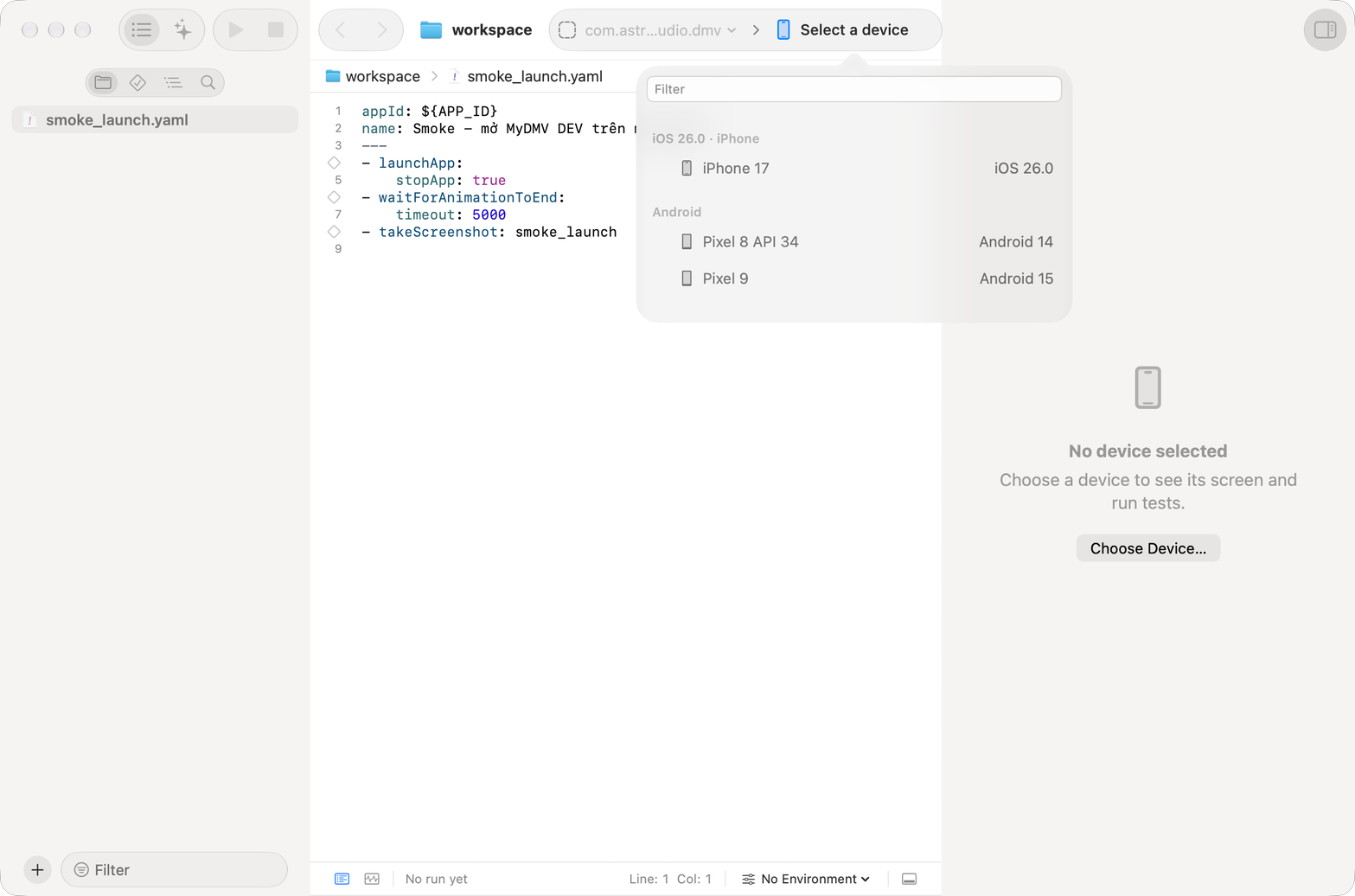
The first connection builds WebDriverAgent, which takes about 3 to 10 minutes. Progress shows as steps such as Connect to simulator and Stream to Astra Scout. When it finishes, the simulator screen appears in the inspector column.
3. Create a flow
Right-click the workspace in the Files navigator and choose New File…, then pick the Mobile Test template. Enter a name and an App ID (use com.apple.Preferences for the Settings app). Replace the contents with:
appId: com.apple.Preferences
name: Settings smoke
---
- launchApp:
    stopApp: true
- tapOn: "General"
- assertVisible: "About"
The file saves automatically after a short delay, or press Cmd+S.
4. Run it
Click Run Test in the toolbar (Cmd+R). Each line in the editor shows its state as the flow runs: pending, running, completed or failed. When the run ends you get a verdict label such as Passed.
5. Add a step with the inspector
- Turn on Device → Inspect Elements and hover over the device screen. The element under the pointer is outlined.
- Right-click it. A menu offers commands such as
tapOnandassertVisiblewith a preview of the YAML. Choose Insert into Editor to add the command to the open flow, then run it.
Read more in Inspector.
Where to go next
- Run flows: logs, videos, running all flows in a workspace.
- Writing flows: Maestro syntax and selectors.
- Settings: configure signing, AI and integrations.